
BaseLock Documentation
How to set up BaseLock, what it does, and what to do if something looks wrong.
Choose Your Path
Select the documentation that matches your account type to get started.
- Individual Users: Individual accounts with personal device security, two devices included and expandable to ten.
- Business Users: Small Business and Enterprise accounts with team management and shared security policies.
Prices for every plan are in Plans & Pricing just below, so you do not have to pick a path to find them.
Plans & Pricing
Plan Tiers
- Advisor: free. A security advisor you can text, with 5 questions a day and 20 a month, 2 checks a month on suspicious texts, emails and files, one connected mailbox, every other connector (calendar, files, code and documents; meetings coming soon) and breach alerts by email. It does not protect a device. See Advisor.
- Individual: $90/month billed annually, or $100/month billed monthly, plus applicable tax. Two devices included, and you can add more from your dashboard at $100/month each, or $1,080/year each on annual billing, up to ten. For individuals and solo professionals.
- Small Business: $900/month billed annually, or $1,000/month billed monthly, plus applicable tax, with ten devices included and room to add more, up to 100. Adds team members with admin and member roles, shared security settings, and an exportable activity log.
- Enterprise (custom): for larger organizations. Adds a dedicated tenant, custom integrations, white-glove onboarding and a dedicated account manager. Slack integration and granular RBAC are coming soon. Contact us for pricing.
Every paid plan defends a device the same way. Device management, endpoint detection and response, automatic threat blocking, and security alerts by email or text. The tiers differ in how many devices they cover and what team administration they add, not in how well a device is defended. The one difference today is dangerous website blocking, which is on Individual accounts now and coming to business accounts. Individual and Small Business plans include Advisor with 30 questions a day and 300 a month.
Annual billing saves 10% against monthly. See the full pricing page for the complete feature breakdown.
System Requirements
Check these before you buy. BaseLock installs on:
- macOS: macOS 15 or later, on Apple silicon and Intel processors. macOS 26.1 and 26.2 are not supported because of a bug in those releases that stops the security agent installing; update to 26.3 or later with Software Update.
- Windows: Windows 10 or later, 64-bit Intel or AMD processors.
- Linux: Debian and Ubuntu on 64-bit Intel or AMD processors (a .deb package). Other distributions and ARM processors are not supported.
Each computer needs an internet connection and an administrator password for the install. Phones and tablets are not covered.
Getting Started with BaseLock
Set up your account and start protecting the computers you already own in three steps.
Quick Start: 3 Steps to Security
Step 1: Create Your Account (about 3 minutes)
- Sign up for your Individual account at getbaselock.com
- Enter your name, email and mobile number. We text you a code; type it in to confirm the number is yours. There is no password to choose, because your phone is how you sign in.
- Choose your plan and pay. Your account is ready as soon as payment goes through.
Step 2: Download the Installer (about a minute)
- Go to Add devices in your dashboard
- Pick the machine you are on: Install on macOS, Install on this PC or Debian / Ubuntu
- Your installer is prepared and downloads. There is no license key to copy and nothing to configure: the download is already tied to your account.
Step 3: Run It and Follow the Prompts (about 2 minutes)
- Open the installer and follow what it asks. It will need your computer's password, which is the operating system checking with you before allowing security software, not us asking for anything.
- Sign in once to turn on web filtering. A browser window opens by itself and asks you to sign in to BaseLock, the same way you sign in to your dashboard: your phone number, then the code we text you. That is what ties the filtering to your account, so the sites you allow and block apply to this computer rather than to nobody. Once per device. You start this yourself, from the computer in front of you. A code that turns up when you have not just installed anything is not part of this and is not from us; do not enter it anywhere.
- Come back to Add devices: the computer appears there by itself, and you press Add this device. No reboot, and it shows under My devices within a minute or two.
On macOS there is one extra prompt, approving a management profile in System Settings, which macOS requires before any security tool can protect the machine. The profile shows the name JumpCloud, the device management service BaseLock runs on. Protection does not finish installing until you approve it.
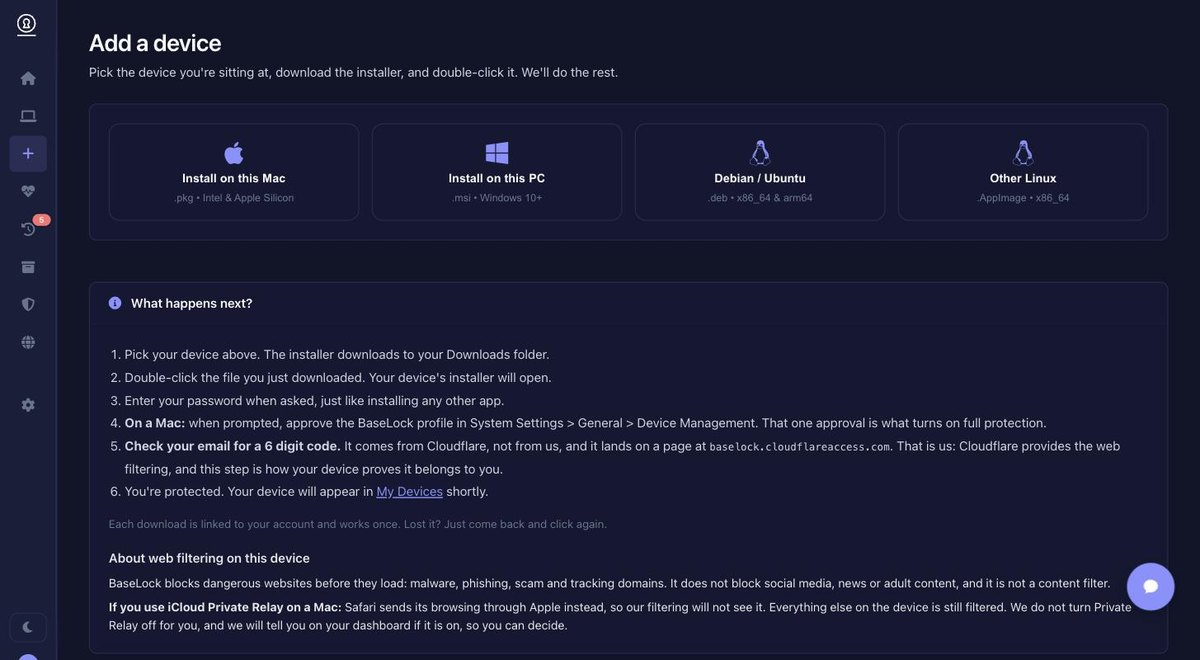
Add devices. Pick the machine you are sitting at; the installer is prepared for that platform and tied to your account.
What's Included
Security Package
- 24/7 Threat Monitoring: Real-time detection and response
- Always-Current Protection: The protection software keeps itself up to date, with nothing for you to install
- Endpoint Detection & Response: Spots attacks by how they behave, not just by recognizing known threats
- Dangerous Website Blocking: Known scam, phishing and malware sites are blocked before your browser can open them
- You Decide: When something new looks risky we message you, and one tap allows or blocks it
Getting Help
If you think something is wrong, or you just want a question answered:
- Chat: Click the chat bubble on this site or in your dashboard. Signed in, we know it is really you, so we can answer about your own account rather than in general.
- Email: support@getbaselock.com
Either way a real person replies, within 24 hours at the latest. No phone trees.
Next Steps
- Create your account now
- Enroll your first device
- Turn on text alerts in Settings, if you would rather have them than email
- Explore the security dashboard
- Review our Security Best Practices
Device Management
Complete guide to managing your enrolled devices.
Enrolling Additional Devices
Adding Another Device
Every device on an Individual account is yours. There is nobody to invite and no separate login to set up: you enroll each machine the same way you enrolled the first.
- Go to Add devices in your dashboard
- Pick the platform you are installing on
- Run the installer on that machine
- The computer appears on that same page on its own, with one button to add it. There is normally nothing to type
- On macOS, approve the profile the system asks about. It shows the name JumpCloud, which is the device management service BaseLock runs on
- The device appears under My devices within a minute or two
You can close the page at any point and come back later, from the same computer or from your phone.
If the computer does not appear
It normally does, and that is the path we expect you to take. When it does not, the installer also shows an 8-character code on that computer's own screen, and there is a quiet link under the download button to type it in instead. That link appears on its own after a few minutes if nothing has shown up.
The code is a fallback, not a step. If you are reading this because you went looking for a box to type into and could not find one, that is working as intended.
BaseLock will never contact you first and then ask you for a code. There are exactly two codes in this product and you can always tell them apart by who started it. The code that adds a computer to your account is only ever shown on that computer's own screen, and we never send it to you. The code that signs you in is one we text you because you just asked to sign in, here or on a computer you are setting up. So a code you did not ask for is not ours, whoever it appears to be from, and nobody at BaseLock will ever ring or message you to read one back.
Do this on the machine you want to protect, since the installer is built for the platform you pick. If you are adding a device beyond the two included, the dashboard asks you to confirm the extra charge first.
Looking to give other people their own accounts and devices? That is Team Management, which comes with the Small Business and Enterprise plans.
Antivirus and Other Security Software
BaseLock installs CrowdStrike Falcon, which is a full endpoint detection and response agent rather than a traditional antivirus. Two real-time scanning engines on one machine fight each other: they quarantine each other's files, each reads the other's activity as suspicious, and the usual result is a slow computer with worse protection than either would give on its own.
Windows
Do not disable Microsoft Defender. You do not need to, and you should not. When CrowdStrike Falcon registers itself with Windows Security Center during install, Defender automatically turns its own real-time protection off and moves to passive mode. Windows does this deliberately so that exactly one engine is scanning at a time, and it reverses itself if BaseLock is ever removed. Turning Defender off by hand gets you the same end state with a window in the middle where nothing is protecting the machine, and it can leave Defender off after an uninstall.
Two things can still get in the way:
- Tamper Protection occasionally blocks the handover on managed or heavily customized machines. If the install fails, open Windows Security, Virus & threat protection, Manage settings, and turn Tamper Protection off, run the installer, then turn it back on. It is safe to re-enable it once BaseLock is running
- A third-party antivirus is different from Defender and will not step aside. See the list below
Third-party antivirus, on any operating system
Uninstall it rather than disabling it. A disabled antivirus still has its filter drivers and kernel extensions loaded, so it still conflicts, and it will switch itself back on at the next update. Remove these before installing BaseLock:
- Norton, McAfee, and the trial versions of either that ship preinstalled on new Windows PCs
- Avast, AVG, Avira
- Bitdefender, ESET, Kaspersky, Trend Micro, Sophos
- Malwarebytes with real-time protection on. The free on-demand scanner is fine
- Webroot, Panda, F-Secure, G Data
- Any other endpoint agent from an employer or a previous provider, including a second copy of CrowdStrike
Use the vendor's own uninstaller or removal tool where one exists. Dragging an application to the Trash on macOS, or deleting a folder on Windows, leaves the parts that cause the conflict behind.
macOS
There is nothing built into macOS to disable. XProtect and Gatekeeper are Apple's own checks, they are not real-time scanners, and they coexist with Falcon without any trouble. Leave them on.
What macOS does need is one approval from you. The installer presents a device management profile, and you approve it in System Settings, General, Device Management. It shows the name JumpCloud, which is the device management service BaseLock runs on rather than a company you have a relationship with. Protection does not finish installing until you approve it.
Linux
There is no built-in antivirus to disable. Remove any existing endpoint agent, and note that ClamAV on a schedule is fine while ClamAV with on-access scanning enabled is not.
If the install still fails
Do not leave your machine unprotected while you work it out. Turn whatever you disabled back on and email support@getbaselock.com with the name of the security software you are running. We would rather sort it out with you than have you sitting behind nothing.
Security Monitoring
Real-Time Threat Detection
- Malware Detection: Dangerous programs are blocked and quarantined
- Behavioral Analysis: Catches attacks by what they do, not only by recognizing known threats
- Website Filtering: Requests to known dangerous domains are refused before they connect (Individual accounts; coming to business accounts)
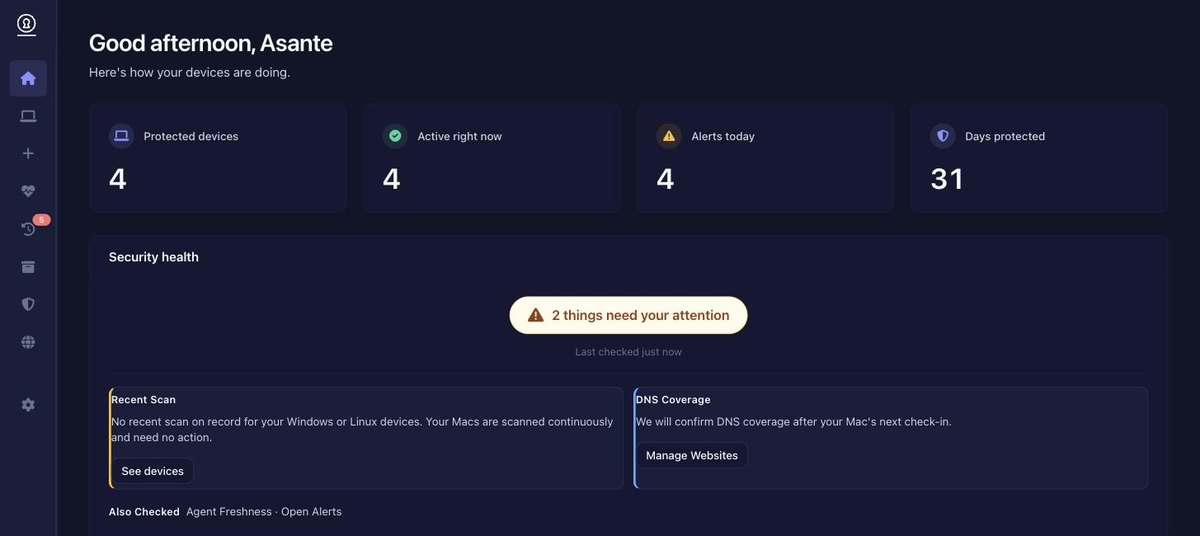
Your dashboard. The Security health panel leads with a count of what needs attention, then explains each item and what to do about it.
Security Dashboard Features
- At a glance: Protected devices, devices active right now, alerts in the last 24 hours, and days protected
- Security health: What needs your attention first, what each item means, and a button to fix it
- Recent activity: Programs we blocked or asked you about, newest first
- Security posture: Each device's settings, such as disk encryption, screen lock and operating system updates
Manage Programs
Found under Manage programs in your dashboard. This is the standing list of software BaseLock always allows or always blocks on your devices, and it is where a decision you made in a text or an email ends up.
Two tabs, Allowed programs and Blocked programs. Each row names the program and who decided:
- BaseLock means we decided automatically, because the program matched something we already know is dangerous. You were not asked, and that is deliberate: for a known threat, asking wastes the seconds that matter.
- You means you chose it, by replying to a text, clicking a link in an email, or adding it here.
- Support means we set it on your behalf, which only happens if you asked us to.
Anything on these lists can be changed. Removing an entry undoes it: take a program off the blocked list and it is allowed to run again, take one off the allowed list and it goes back to being judged on its merits. A decision you made in a hurry is never permanent.
If a program you expected to see is missing, it has probably not tried to run yet. This list records decisions, not an inventory of everything installed.
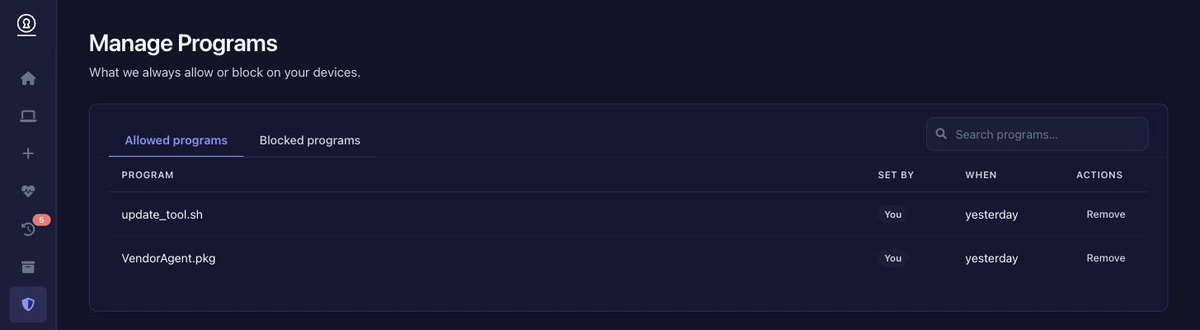
Manage Programs. The "Set by" column is the part worth reading: it tells you whether BaseLock decided automatically or you did.
Manage Websites
Found under Manage websites (Individual accounts). Dangerous sites are already blocked for you without appearing here; this page is for the ones you want to decide about yourself.
Add an address like example.com and choose Always
allow or Always block. Enter the domain rather
than a full link: a rule covers the whole site, so
example.com and not
https://example.com/some/page.
Always allow is for a site we are blocking that you know is fine. Always block is for a site you want kept off your devices whatever we think of it, which people mostly use for time-wasting rather than for danger.
One asymmetry worth knowing: allows expire after 30 days, blocks never do. An allow is you overriding a safety judgement, so it is time-boxed and the page shows the date it lapses. That is the difference between an exception you opened deliberately and a hole you forgot about. When it lapses the site goes back to being judged normally, and you can always allow it again. A block is you being more careful than us, so it stays until you remove it.
Removing a rule asks you to type the address to confirm. That is on purpose: removing an allow can re-block a site you need for work, and removing a block re-opens one you chose to keep out.
Rules apply to every device on your account, not to the one you happen to be using. They take effect within a minute or two, and a page already open in a browser tab may need a reload.
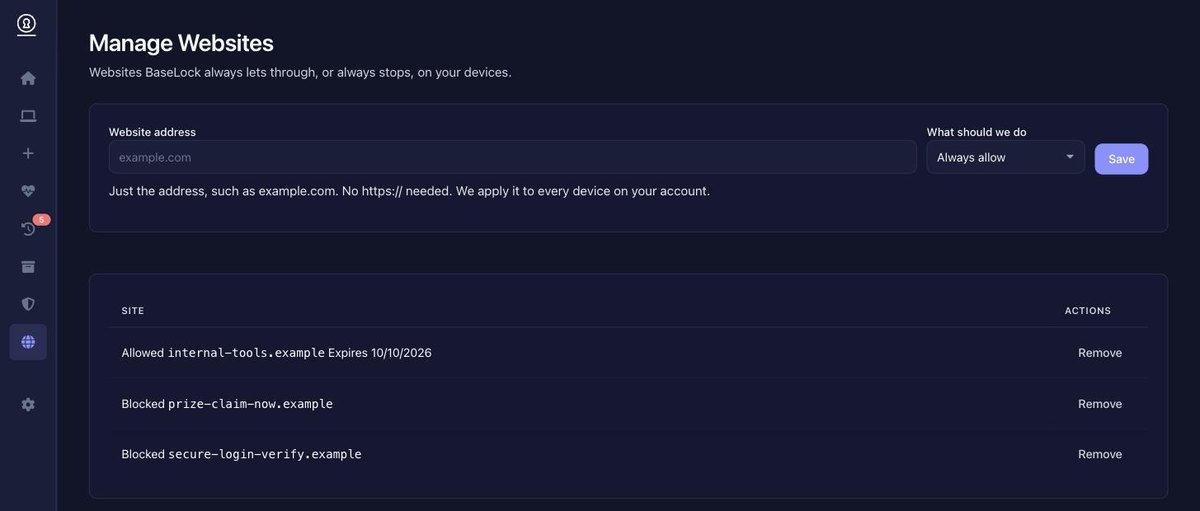
Manage Websites, showing the asymmetry above: the allowed site carries an expiry date, the blocked ones do not.
Ask Us About Something Suspicious
If something lands in your inbox or your messages and you are not sure about it, ask Advisor: send it to us and we will tell you what we think. How Advisor works is covered in its own section.
The simplest way is to reply in the conversation your security alerts already come from. What that conversation looks like depends on your phone, and both reach us:
- On most Android phones you will see a verified BaseLock conversation with our name and logo rather than a phone number. That is our verified messaging account.
- On an iPhone, or any phone where that richer messaging is unavailable, the same messages arrive as an ordinary text from +1 877 907 2525, our toll-free number.
If you have never had an alert and want to start a conversation, text +1 877 907 2525.
You can send a link, a screenshot, a PDF or other attachment, or just type or paste the message itself. To ask a question, just ask it in your own words.
You get a plain answer back, usually within a minute or two, saying what we found and why. That first answer is written by our automated checker, which reads the message and checks its links; if you want a person to look, reply and ask, or email support. If it turns out to be a dangerous site on an individual account, we offer to block that domain across all your devices, and blocking is one reply away. On a business account, filtering a domain that way is not yet something we can turn on, so we let your administrator know instead of offering a link that would not work.
You can also forward the whole email, and for a suspicious message that is the fastest way to reach us: see how to report a suspicious email for the address to use and the sender rule that decides whether it reaches us at all.
Sending Us the Headers of a Suspicious Email
Forwarding the email as an attachment, the way the reporting guide describes, already carries these headers, so most people never need this section. It exists for two cases: your phone's Mail app cannot forward as an attachment, or you would rather not use your reporting address and want to send us the headers by hand instead.
Every email carries hidden technical details called headers, which record the path it actually took to reach you. They are the most useful thing you can send us about an email, because the visible sender name is trivial to fake and the headers usually are not. A message that looks like it came from your bank often has headers showing it came from somewhere else entirely.
Here is how to copy them out of the three services most people use. In each case you are looking at the message you are suspicious about, and you are copying text, not forwarding anything.
Gmail (in a web browser)
- Open the message
- Click the three dots at the top right of the message, beside the reply arrow. This is the menu for the message, not the one at the top of the page.
- Choose Show original
- A new tab opens. Click Copy to clipboard.
- Paste it into a text to us
The Gmail mobile app cannot do this; use a browser, on a phone or a computer. If you are on a phone, tapping Desktop site in your browser's menu makes the three dot menu appear.
Outlook and Hotmail (outlook.com in a browser, or the new Outlook app)
- Open the message
- Click the three dots at the top right of the message
- Choose View, then View message source
- Select all of the text that appears and copy it
In the classic Outlook program on Windows, the one with a ribbon across the top, open the message in its own window first by double clicking it, then File → Properties, and the headers are in the Internet headers box at the bottom. The Outlook app on iPhone and Android cannot show headers; use a browser or a computer for this.
Apple Mail (on macOS)
- Click the message once to select it
- In the menu bar choose View → Message → All Headers, or press Shift + Command + H
- The headers appear above the message. Select them and copy.
On an iPhone or iPad, Mail can do neither of the two things on this page: it cannot forward an email as an attachment, and it cannot show you the headers to copy. So there is nothing to work around on the phone itself. Do one of these instead:
- Forward it from the phone anyway. We check it and answer you as normal. That answer is based on the words and links in the message rather than on who sent it, and our reply says so plainly when it is, so you are never left assuming otherwise.
- Open the same mailbox on a computer, in a browser or in a desktop mail app, and forward it from there as an attachment. That is the version that carries the sender, and the reporting guide has the steps for each mail app.
If the Headers Are Too Long to Send
Headers can run to several pages, and a very long text may not send in one piece. If that happens, send us the first twenty or so lines. The parts we care about most are near the top: the lines beginning Received:, Return-Path:, Authentication-Results: and From:.
If it is easier, email the whole thing to support@getbaselock.com instead, pasted into the body of a normal message. Again, paste rather than forward.
DNS Filtering and iCloud Private Relay
BaseLock blocks dangerous and blocked websites by filtering DNS, the lookup your device performs before it connects to a site. If you use macOS, an iPhone or an iPad with iCloud Private Relay switched on, Safari sends its lookups through Apple's relay instead of ours. Your browsing stays private from your network provider, and it also means sites you have blocked in BaseLock can still open in Safari.
Other browsers on the same computer, and every other app, are unaffected: Private Relay only covers Safari. Windows and Linux devices are not affected at all, because Private Relay is an Apple feature.
We will not turn it off for you
Private Relay is a privacy feature you chose, and we do not switch it off or ask your device to. What we will do is tell you the truth about what we are filtering. Your dashboard shows a DNS coverage check that reads:
- DNS filtering covers your browsing: Private Relay is off, and website blocks apply everywhere.
- iCloud Private Relay is on: blocks apply everywhere except Safari on that device.
- We have not confirmed this yet: that macOS device has not answered since it was enrolled. This usually resolves within a day.
How to turn iCloud Private Relay off on macOS
You can turn it off for every network, or for one network at a time. Turning it off entirely is the option that makes BaseLock's website blocks apply in Safari everywhere you go.
For all networks (macOS Ventura and later):
- Open System Settings from the Apple menu.
- Click your name at the top of the sidebar.
- Click iCloud.
- Click Private Relay.
- Switch it off, then click Done.
On macOS Monterey, the same setting lives in System Preferences → Apple ID → iCloud, where Private Relay is a checkbox in the list of iCloud features.
For one Wi-Fi network only:
- Open System Settings → Wi-Fi.
- Click Details next to the network you are on.
- Switch Limit IP Address Tracking off.
Private Relay needs an iCloud+ subscription, so if you do not pay for iCloud storage you will not see these options, and the DNS coverage check will simply report that filtering covers your browsing.
What you give up, and what you get
With Private Relay on, Apple hides your Safari browsing from your network provider and from the sites you visit, and BaseLock cannot block a dangerous site in Safari on that device. With it off, BaseLock's blocks apply in Safari, and your Safari browsing is visible to your network provider as it normally would be.
Both are reasonable choices. If you leave it on, everything else BaseLock does is unchanged: threats are still detected and quarantined on the device, and website blocks still apply in Chrome, Firefox, Edge and every other app.
Travel Support
Protection Does Not Change When You Travel
There is nothing to switch on before a trip. The agent works wherever the device has an internet connection, and website blocking and threat detection behave exactly as they do at home.
- 24/7 Coverage: Continuous protection regardless of location
- No Region Locking: Protection is not tied to a country, a network, or a time zone
- Support Follows You: Chat and email work from anywhere, in English
Before You Go
- Check that each device shows a recent check-in on your dashboard
- Install any pending operating system updates while you are on a network you trust
- Make sure the mobile number on your account is one you can receive texts on abroad, since that is how you sign in
BaseLock is not a VPN. On a network you do not trust, a public airport or hotel connection, use a VPN of your own choosing alongside BaseLock. The two do different jobs.
Keeping Devices Up To Date
Update Status
Out of date software is how most successful attacks get in, so BaseLock watches for it rather than leaving you to remember.
- Update Status: Your Security Posture page shows which devices are behind on operating system updates
- Plain Language: You are told what needs updating and why it matters, not given a patch number
On an Individual account BaseLock reports on updates rather than forcing them, because a security tool that reboots your laptop mid-sentence is a tool people turn off. You install them when it suits you. Business accounts get the same update status reporting today; enforced update deadlines, where an admin has updates installed once a deadline passes, are coming soon. BaseLock is also not a tune-up utility: it does not clear caches, defragment disks, or manage your battery.
Device Replacement & Re-enrollment
Replacing a Device
If you replace a device, enroll the new one the same way you enrolled the first: pick your platform under Add devices, run the installer, and add the computer when it appears. Your settings apply to it automatically, because they belong to the account rather than to a machine.
- Go to Add devices in your dashboard
- Pick the new machine's platform and download its installer
- Run the installer on the new device
- Press Add this device when the new machine appears. If it does not appear after a few minutes, use the link under the download button to enter the 8-character code shown on its screen
- Remove the old device under My devices once you stop using it
Security Best Practices
The habits that protect you most, alongside what BaseLock does for you.
Password Security
Strong Password Creation
- Length beats complexity: Use a passphrase of four or more random words, or let a password manager generate one. A long password you can type is stronger than a short one full of symbols.
- Never reuse a password: When one site is breached, reused passwords are what spread it to your other accounts.
- Turn on two-step sign-in: Especially for email, banking, and your Apple, Google or Microsoft account. Prefer an authenticator app or a passkey over text codes.
- Use passkeys where offered: They cannot be phished, because they only work on the real site.
Use a Password Manager
Nobody can remember a different strong password for every account, which is why reuse is so common and so damaging. A password manager removes the need to try.
- Already on your computer: Keychain on macOS, Credential Manager on Windows, GNOME Keyring or KWallet on Linux. Free, and enough for most people.
- Dedicated apps: 1Password and Bitwarden both work across phones and computers and can share a password with family or a colleague safely.
- Let it generate them: A password you never see and never type is the strongest kind.
BaseLock does not include a password manager and never stores your passwords. Your BaseLock account itself has no password at all: you sign in with a code sent to your phone. If you lose that phone and are locked out, recover your account from the help page.
Safe Browsing Practices
Identifying Online Threats
- Phishing Emails: Suspicious sender addresses, urgent requests
- Malicious Websites: Addresses that are slightly off, and pages that ask you to sign in after you followed a link. Modern scam sites often look perfect, so check the address, not the design
- Download Risks: Unknown file types, unofficial sources
- Social Engineering: Unexpected requests for sensitive information
Browser Security Settings
- Ad Blockers: Prevent malicious advertisements
- Privacy Extensions: Block tracking and fingerprinting
- HTTPS Enforcement: Prefer encrypted connections
Software Management
Keeping Software Current
- Automatic Updates: Enable for your operating system and security tools
- Trusted Sources: Install from your platform's official channel: the App Store, the Microsoft Store, or your distribution's package manager
- Regular Reviews: Remove unused or outdated applications
- Permission Audits: Review app permissions regularly
Third-Party Software
- Verification: Check developer signatures and reputation
- Reviews: Read user reviews and security assessments
- Alternatives: Consider the tools built into your operating system first
- Sandboxing: Prefer sandboxed applications when available
Data Protection
Backup Strategy
- Local Backups: Automatic backups to an external drive with Time Machine on macOS, File History on Windows, or Timeshift and Déjà Dup on Linux
- Cloud Backup: Secure off-site storage for important files
- Versioning: Keep multiple versions of critical documents
- Testing: Regular restoration tests to verify backup integrity
File Encryption
- Full-Disk Encryption: FileVault on macOS, BitLocker on Windows, LUKS on Linux
- Sensitive Documents: Additional encryption for critical files
- External Media: Encrypt USB drives and external storage
- Cloud Storage: Client-side encryption before upload
Home Network Security
WiFi Configuration
- WPA3 Encryption: Use the latest WiFi security standard
- Strong Passwords: Complex WiFi passwords, avoid defaults
- Guest Networks: Separate network for visitors and IoT devices
- Regular Updates: Keep router firmware current
Router Security
- Admin Access: Change default admin credentials
- Remote Management: Disable unless specifically needed
- Firewall: Enable built-in firewall protection
- Monitoring: Review connected devices regularly
Emergency Procedures
Suspected Compromise
- Immediate: Choose Cut off network for that device under My devices. It isolates the machine from the internet while keeping its connection to BaseLock, so we can still see and help. Unplugging it entirely cuts us off too
- Report: Open the chat in your dashboard, or email support@getbaselock.com
- Document: Note suspicious activities and timeframes
- Isolation: Avoid using device for sensitive activities
- Follow-up: Implement recommended remediation steps
How To Reach Us
- Dashboard Chat: Signed in, your identity is confirmed, so we can answer about your own account
- Email: support@getbaselock.com
A real person replies, within 24 hours at the latest. If you are locked out and cannot reach the dashboard, email us from the address on the account.
Security Advisor
A security advisor you can text. Free to start.
What It Is
Security Advisor, Advisor for short, answers security questions in plain language and checks things you are unsure about: a text, an email, a link or a file. It is free, and it does not need a device to be installed. Paid plans include it with a bigger allowance.
How to Text It
Text +1 877 907 2525, our toll-free number. Advisor works over RCS where your phone supports it, and over ordinary SMS everywhere else. Ask in your own words. To have a message checked, paste it or forward it.
Forwarding Something Suspicious
Paste a suspicious text into a message to the Advisor number. Files and screenshots work over RCS; on plain SMS, paste the words. Forward a suspicious email to your personal reporting address instead: every account, free included, gets one, and it is shown on your dashboard. Forwarded email is accepted only from the email address on your account; anything sent from another address is discarded without a reply. See how to report a suspicious email. We check it and reply with what we found and why. Each of these checks counts against your monthly checks.
Never send Advisor a password, a sign-in code or bank details.
What It Remembers
Advisor keeps short notes from your own questions, such as the devices you use or that you are travelling, so later answers fit you. When it saves one it tells you in the same reply, starting "Noted:". It tries not to keep links, codes, passwords or bank details, and it never keeps anything you sent to be checked.
You view and delete notes in Settings, under What Advisor remembers, where you can also turn note-keeping off. Texting WHAT DO YOU REMEMBER tells you how many notes are saved. Notes are erased 12 months after you last use Advisor, and when you delete your account.
Connecting a Mailbox
Connect an Outlook.com mailbox from Advisor Connectors in your dashboard and Advisor screens new mail for scams, up to a daily limit. Gmail is coming soon. The free plan connects one mailbox. To disconnect it, open Advisor Connectors, find the mailbox and choose Disconnect.
Connecting Other Accounts
Connectors work with Outlook.com, GitHub, Notion and Dropbox today; Gmail and Zoom are coming soon. Every plan, free included, can also connect an Outlook.com calendar and OneDrive, Dropbox, GitHub and Notion from Advisor Connectors. These are not mailboxes, so they do not count against the one mailbox on the free plan, and checking them does not use your allowance. Advisor reads invites, settings and sharing, never the contents of your files or pages:
- Calendar: invites from someone else with a link that hides where it goes.
- OneDrive, Dropbox and Notion: files, folders and pages that anyone with the link can open.
- Google Drive (coming soon, with Gmail): files that anyone with the link can open or edit.
- GitHub: passwords and keys that GitHub's own secret scanning found exposed in your repositories.
- Zoom (coming soon): meeting settings that let someone who only has the link join. See the Zoom guide.
A connector still waiting on the provider's review is shown as Coming Soon.
Breach Alerts
If your email address or phone number turns up in a known data breach, we tell you, on every plan including free.
Your Allowance
- Free: 5 questions a day and 20 a month, 2 checks a month across texts, emails and files, and 1 connected mailbox.
- Individual and Small Business: 30 questions a day and 300 a month.
Advisor tells you the reset date when you reach a limit. The monthly allowance is a fixed 30 days from that date, not the calendar month, and daily limits reset once a day.
At the Limit
When you use up an allowance, Advisor tells you so and says when it resets. Nothing is charged, and your account keeps working. You can wait for the reset or upgrade.
Upgrading
Upgrade to Individual from Settings. It adds protection for two devices and raises your Advisor allowance. Prices are in Plans & Pricing.
What Advisor Is Not
Frequently Asked Questions
Quick answers to common questions about BaseLock.
Billing & Subscription
Is Advisor really free?
Yes. Advisor costs nothing: 5 questions a day and 20 a month, 2 checks a month on texts, emails and files, one connected mailbox, every other connector and breach alerts by email. See the Advisor section.
What happens when I run out of questions?
Advisor tells you the allowance is used and the date it resets. Nothing is charged. You can wait for the reset, or upgrade to Individual for 30 questions a day and 300 a month.
How much does BaseLock cost?
Individual plans start at $90/month when billed annually ($100/month billed monthly) and cover up to 2 devices. Small Business is $900/month annually ($1,000/month monthly) with ten devices included. Prices are plus applicable tax. Enterprise pricing is custom, so contact us for a quote. See the pricing page for full details.
Can I cancel anytime?
Yes. Cancel from Settings, under Subscription, whenever you like. Protection continues until the end of the period you have paid for, and within 30 days of your first payment you can get a full refund.
What payment methods do you accept?
We accept all major credit and debit cards, processed by Stripe. Enterprise customers can arrange invoicing; ask us.
What happens if a payment fails?
We email you and show a notice on your dashboard. Your devices stay protected for 10 days while you update your card under Settings, Manage subscription. If the payment still has not gone through after 10 days, BaseLock is removed from your devices until you start a new subscription.
Security & Privacy
Can BaseLock see my personal files?
Nobody at BaseLock reads your files. Your photos, documents, emails and messages are yours alone: we do not open them, copy them off the device, or store them.
Being straight about how that works: the protection software does examine files on the device itself, because that is the only way to recognize a malicious one. That check happens locally, and what reaches us is the verdict, not the contents. When an attack does happen we collect technical detail about what the attacking program did, never copies of your files or your conversations. We also do not record your screen, log what you type, or use your microphone or camera.
What happens if my device is stolen?
Remove it from your device list in the dashboard straight away. That revokes its access to your account and frees the slot for a replacement. Then open the chat or email support@getbaselock.com and we will confirm it has been cut off.
Be aware of what BaseLock cannot do: it cannot lock the device, erase it, or tell you where it is. Those are functions of the device itself, so use Find My on macOS, or Find My Device on Windows, and report the theft to the police and to your bank if card details were saved on it.
How does threat detection work?
Every device runs an endpoint agent that recognizes known threats and spots new ones by how they behave. Known threats are blocked on the spot. Anything new and uncertain comes to you as one question, by email or text, and you allow or block it with one tap.
Device Management
Can I add team members later?
Team members come with Small Business and Enterprise. Individual accounts are for one person and their own computers. To move to Small Business, contact us; it is not a switch you can make in Manage subscription.
What if my device needs repair?
Arrange repairs through your hardware vendor or manufacturer as normal. Once your device is back online, the BaseLock agent reconnects on its own. If you get a replacement device, enroll it from Add devices the same way you did the original.
Can I upgrade my device later?
Yes. Enroll the new device from Add devices, then remove the old one under My devices, which frees its slot. Your settings apply to the new machine automatically, because they belong to the account rather than to a device.
Travel & International Use
Does BaseLock work when I travel abroad?
Yes. The agent works on any device with an internet connection, wherever it is, and there is nothing to switch on first. Support is by chat and email, in English, from anywhere. You sign in with a code sent by text, so travel with a number that can receive texts where you are going.
BaseLock is not a VPN, so on a public network you do not trust, an airport or a hotel, use a VPN of your own alongside it. They do different jobs.
Technical Support
How do I get help?
- Chat: The chat bubble on this site and in your dashboard. Signed in, we can answer about your account specifically.
- Email: support@getbaselock.com
- Self-Help: These guides, which cover setup, alerts, and the questions we are asked most
What if I'm not tech-savvy?
You do not need to be. Setup is one installer per computer, and after that the only thing BaseLock ever asks of you is a yes or no when something new tries to run. If you get stuck, chat with us or email support@getbaselock.com and a real person will walk you through it in writing.
Can you help with non-security issues?
Our focus is security. For hardware or general software problems we will point you to the right place, usually the manufacturer.
Performance & Compatibility
Will security software slow down my device?
You shouldn't notice it. The agent is built to use very little memory and processor time. If a device feels slower after installing, tell us and we will look into it.
What apps are compatible?
Everyday apps work normally. If BaseLock ever flags something you trust, allow it from the alert, or from Manage programs in your dashboard.
Can I still use iCloud, OneDrive, and other cloud services?
Yes. BaseLock does not interfere with iCloud, OneDrive, or your Linux desktop's own sync tools.
Getting Started
How long does setup take?
About two minutes per device, with no reboot. On macOS, add a moment to approve the device management profile when the system asks.
Do I need to install anything?
Yes, one installer per device. Download it from your dashboard and run it. The computer then shows up on the Add devices page with one button to press, so there is normally nothing to type. BaseLock will never email or text you a code for this. There is no command to type and no reboot.
What if I change my mind?
You have 30 days from your first paid signup to cancel and get your money back, including anything you paid for additional devices. Email support@getbaselock.com and we will refund it and cancel your subscription. Protection on your devices stops within about a day. Your account stays, so you can sign in and subscribe again whenever you like.
After 30 days, and on any renewal, payments are not refundable. You can still cancel at any time and keep protection until the end of the period you have paid for. Removing a device frees its slot for a replacement, but does not reduce that period's fees.
Business Setup Guide
Setting up BaseLock for a team.
Creating a Business Account
- At sign-up, choose My team or business and the Small Business plan
- Enter your company name and your own details. You become the account's first admin
- Choose how many devices to cover, starting at ten, and pay by card
- Invite your team from Users in the dashboard, as below
There is no approval step or paperwork: your account is ready as soon as payment goes through. For more than 100 devices, or invoicing, ask us about Enterprise.
Team Invitations
Inviting Team Members
- Go to Users in your dashboard (the page is called Team members)
- Click Invite a member
- Enter team member details:
- First name and last name (both required, separate fields)
- Email address (required)
- Mobile number (required). This is not optional and not a contact detail: the invitation is pinned to this number, so only somebody who can receive its texts can redeem it. An invite with no number is rejected.
- Role: Member or Administrator. Member is the default, and it is the least-privileged of the two.
- Click Send invitation
- They get an email with a link that works for 7 days, and install BaseLock on their own computer from there
Security and Admin Controls
Advanced Security Controls
- Shared Posture Policies: Settings set once by an administrator apply across every device on the account. For updates, BaseLock reports each device's update status; enforced update deadlines are coming soon
- Application and Website Control: Not yet available at the account level for business accounts. When we flag a program or a site on one of your team's devices, we let your administrator know instead of offering a block that would not take effect
- Dedicated Tenant (Enterprise): Your fleet is isolated from every other customer's
Management & Reporting
- Centralized Dashboard: Overview of all devices and threats
- Roles: Admin and Member today; custom roles are coming soon
- Audit Logs: Every account action recorded, and exportable as a spreadsheet
- Notification Controls: Choose whether security events reach you by email, text, or both
- Custom Integrations: Available on Enterprise, scoped with you during onboarding
Training & Support
For Administrators
- These Guides: Setup, team management, alerts, and the questions we are asked most
- Chat: Signed in to the dashboard, we can answer about your own account rather than in general
- Onboarding: Enterprise plans include white-glove onboarding, where we walk your team through deployment directly
For Your Team
There is deliberately nothing for them to learn. Enrollment takes about two minutes per computer, and after that the agent runs quietly. The only thing an employee ever has to do is answer a message when something needs a decision, which is one tap to allow or block.
If it would help to have that explained to your staff directly, ask us in chat and we will arrange it.
Ongoing Support
Business Support Channels
- Chat and email: A real person replies within 24 hours, on every plan
- Dedicated Account Manager: Included with Enterprise
- Contracted Support Terms: Enterprise response times are written into your contract
- Slack Integration: Security alerts in your Slack channels (coming soon)
Team Management
Inviting people, roles, and keeping an eye on the team.
Managing Your Business Team
Adding Team Members
- Go to Users in your dashboard (the page is called Team members)
- Click Invite a member
- Enter team member details:
- First name and last name (both required, separate fields)
- Email address (required)
- Mobile number (required). This is not optional and not a contact detail: the invitation is pinned to this number, so only somebody who can receive its texts can redeem it. An invite with no number is rejected.
- Role: Member or Administrator. Member is the default, and it is the least-privileged of the two.
- Send invitation
User Roles & Permissions
Administrator
- Invite and remove team members, and change their roles
- View all team security data
- Manage billing and subscriptions
- Configure security settings for every device on the team
- Export the team's activity as a spreadsheet
Member
- Install BaseLock on their own computers and see them
- Access their security dashboard
- Receive security alerts for their devices
Team Security Monitoring
What an admin can see:
- Dashboard: Protected devices, alerts and security health across the team
- Security Posture: Each device's settings, such as disk encryption, screen lock and updates
- Activity Export: Everything that happened across the team, as a spreadsheet, up to a year at a time
Get Help
Two ways to reach us, both answered by a person.
Chat
The chat bubble on this site and in your dashboard. Signed in, your identity is confirmed, so we can answer about your own account rather than in general.
Email Support
A Real Person, Always
Whichever you use, a person replies within 24 hours at the latest. No phone trees.